
How to Merge, Split & Extract PDF Pages Without Uploading
Most free PDF tools upload your file and delete it an hour or two later. This guide shows how to merge, split and extract PDF pages in your browser instead, mode by mode, with the usual fixes.
The safest upload is the one that never happens.
You can merge, split and extract PDF pages without uploading them anywhere. A browser-based tool loads the PDF into your own browser tab, rearranges the pages there, and hands back a new file, so the document never reaches a server. ReadLoudly's free Merge PDF tool and Split PDF tool work this way, and this guide walks through every mode they have, with screenshots taken on real files.
It matters because the best-known free tools do upload. Smallpdf says your PDFs are "automatically deleted from our servers after one hour" (Smallpdf), iLovePDF deletes files "within two hours of being processed" (iLovePDF security page), and Adobe's online merger says your file "will be securely handled by Adobe servers" (Adobe Acrobat). Those are reasonable policies. But for a contract, a medical form or a bank statement, a copy on someone else's server for an hour is still a copy you did not need to make.
Key Takeaways
- Popular online PDF tools upload your file and delete it later: after one hour at Smallpdf and PDF24, and about two hours at iLovePDF and Sejda. A browser-based tool does the same jobs with no upload at all.
- Merging has two modes. File Mode puts whole documents in order; Page Mode lets you move, rotate or discard single pages from any of them. JPG and PNG images can be merged in too.
- Splitting works three ways: Visual Cut (click scissors between pages), By Range (custom ranges or every N pages) and Size (parts under a set number of MB). Extract saves only the pages you tick, as one new PDF.
- Merging copies pages, not bookmarks, and a password-protected PDF will not open until you save an unlocked copy.
What "Without Uploading" Actually Means
Every online PDF tool does one of two things with your file. A server-based tool sends it to the company's computers, processes it there and sends the result back. A browser-based tool sends the processing code to you instead, and your file stays in the memory of your browser tab from start to finish.
ReadLoudly's PDF tools are browser-based. When you add your first file, the page loads two open-source libraries. PDF.js, which Mozilla describes as "a general-purpose, web standards-based platform for parsing and rendering PDFs," draws the page thumbnails. pdf-lib copies pages "between different PDFDocument instances" to build the new file. No server step is involved, which is why you never see an upload progress bar.
| Tool | Where your PDF is processed | What happens to the file |
|---|---|---|
| Smallpdf | Smallpdf's servers | Deleted after one hour |
| iLovePDF | iLovePDF's servers | Deleted within two hours |
| PDF24 online tools | PDF24's servers | Deleted after one hour |
| Sejda online | Sejda's servers | Deleted after two hours |
| Adobe Acrobat online | Adobe's servers | Deleted unless you sign in and save it |
| ReadLoudly Merge PDF and Split PDF | Your browser | Never leaves your device |
Policies as stated on each company's own tool, FAQ or security page, checked September 15, 2026.
To be fair to the upload-based tools, PDF24 also makes a free desktop app, PDF24 Creator, which the company says can "perform all functions offline and locally - without uploading anything" (PDF24 FAQ). If you are happy to install software, it is a solid choice. If you would rather not install anything, a browser-based tool gets you the same privacy from a tab.
Check it yourself in one minute
Open your browser's developer tools, choose the Network tab, then add a PDF to the merger. You will see the PDF libraries download from cdnjs.cloudflare.com and no request that carries your document. It is a more convincing test than any privacy badge, and it works on any tool that claims to process files locally.
How to Merge PDF Files Without Uploading
Open Merge PDF, add your files, put them in order and click Merge PDF. The four steps below cover everything the tool can do, including the two modes most people miss.
-
Add your PDFs and images
Open the free PDF merger and click to upload, or drag files onto the page. You can select several files at once, and JPG and PNG images are accepted: each image becomes its own page, sized to the picture. Forgot one? Use Add More in the toolbar or the dashed Add More card at the end of the grid.
-
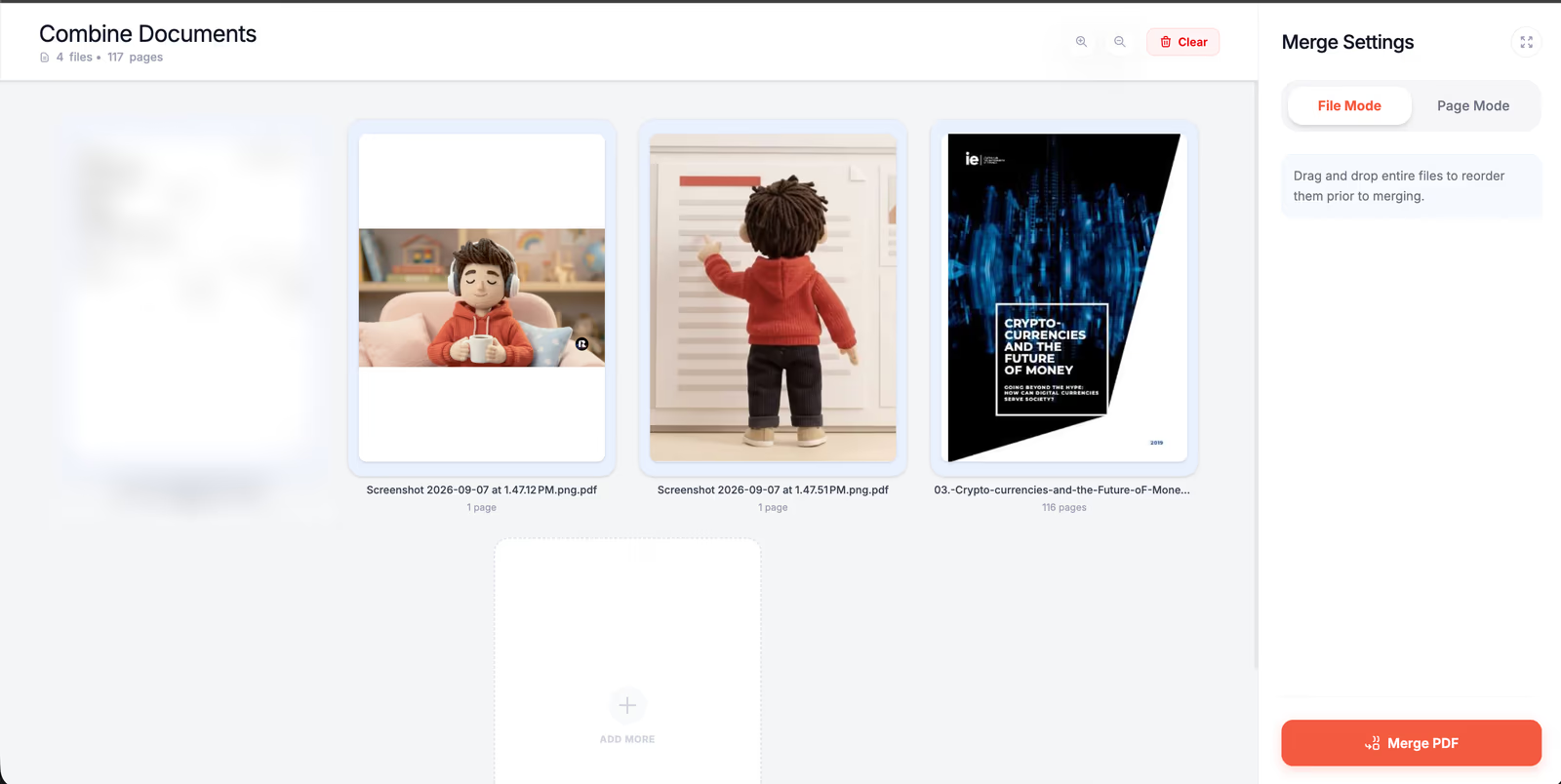
Put whole files in order in File Mode
File Mode shows one card per document with its page count. Drag the cards into the order the final PDF should follow, and remove any file you added by mistake.
-
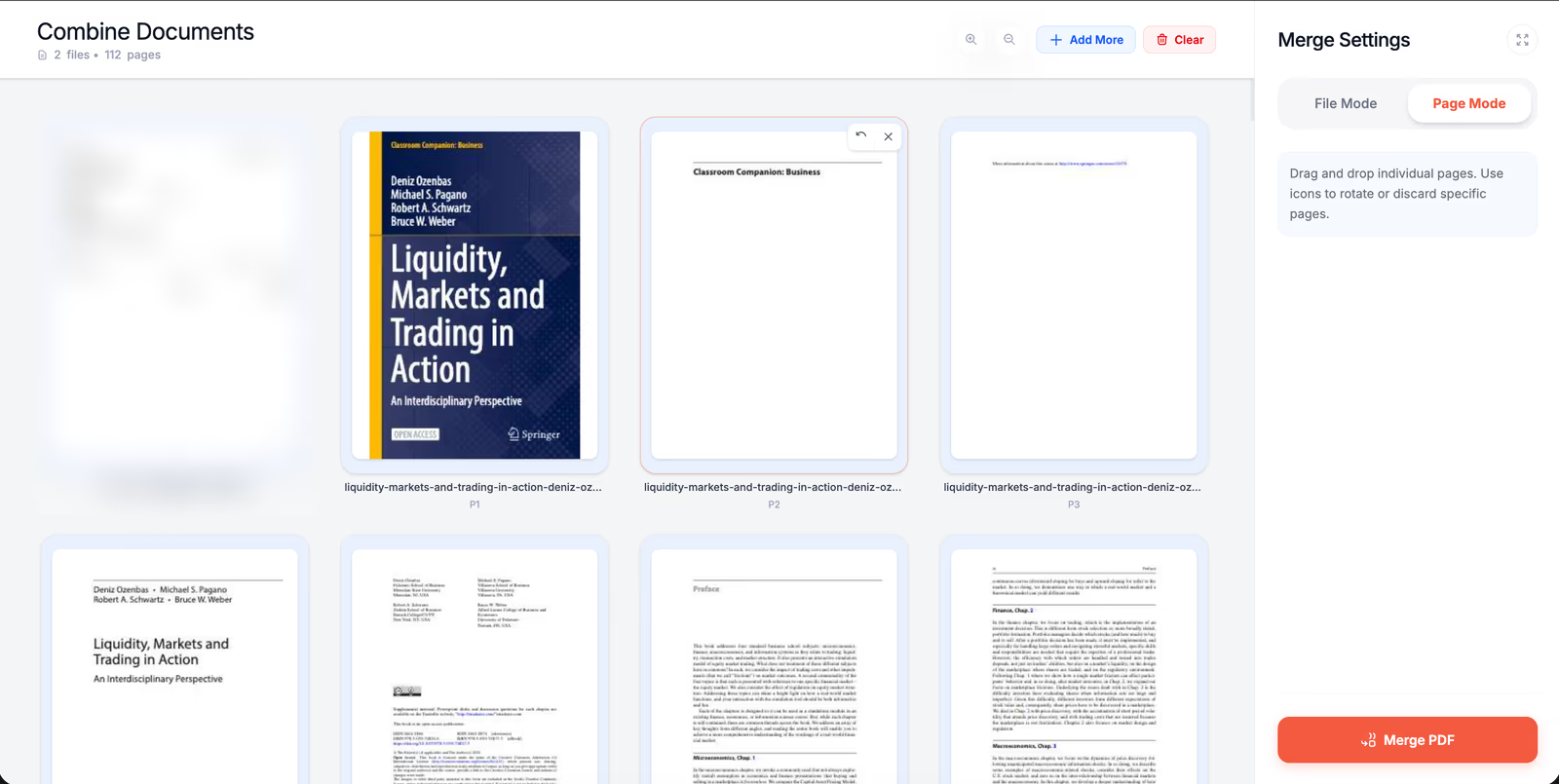
Fine-tune single pages in Page Mode
Switch to Page Mode and every page of every file becomes its own thumbnail, labelled with its file name and page number. Drag a page anywhere, including between files, and hover over it to rotate it or discard it.
-
Merge and download
Click Merge PDF. The tool builds one new document in the order on screen and offers it for download. Clear empties the workspace when you want to start again.
What carries over into the merged file
Pages are copied as they are, so text stays selectable, images keep their resolution, and any rotation you set in Page Mode is applied. Two things do not come along. Bookmarks from the source files are dropped, a known limit of pdf-lib's page copying reported in GitHub issues #218 and #1017, so add bookmarks after merging if readers need them.
Fillable form fields may also stop being editable, so fill in forms first and merge second.
Each file can be up to 50 MB as a guest and up to 500 MB on paid ReadLoudly plans. There is no limit on the number of files, but the work happens on your device, so a stack of large scans merges faster on a laptop than on a phone.
How to Split a PDF Into Separate Files
Open the free PDF splitter, add one PDF and choose how to cut it. The Split tab has two methods, Visual Cut and By Range, and the Size tab splits by file size. Every option ends with the Split PDF button, and you can download the parts one by one or all together as a ZIP.
Visual Cut: click where the file should break
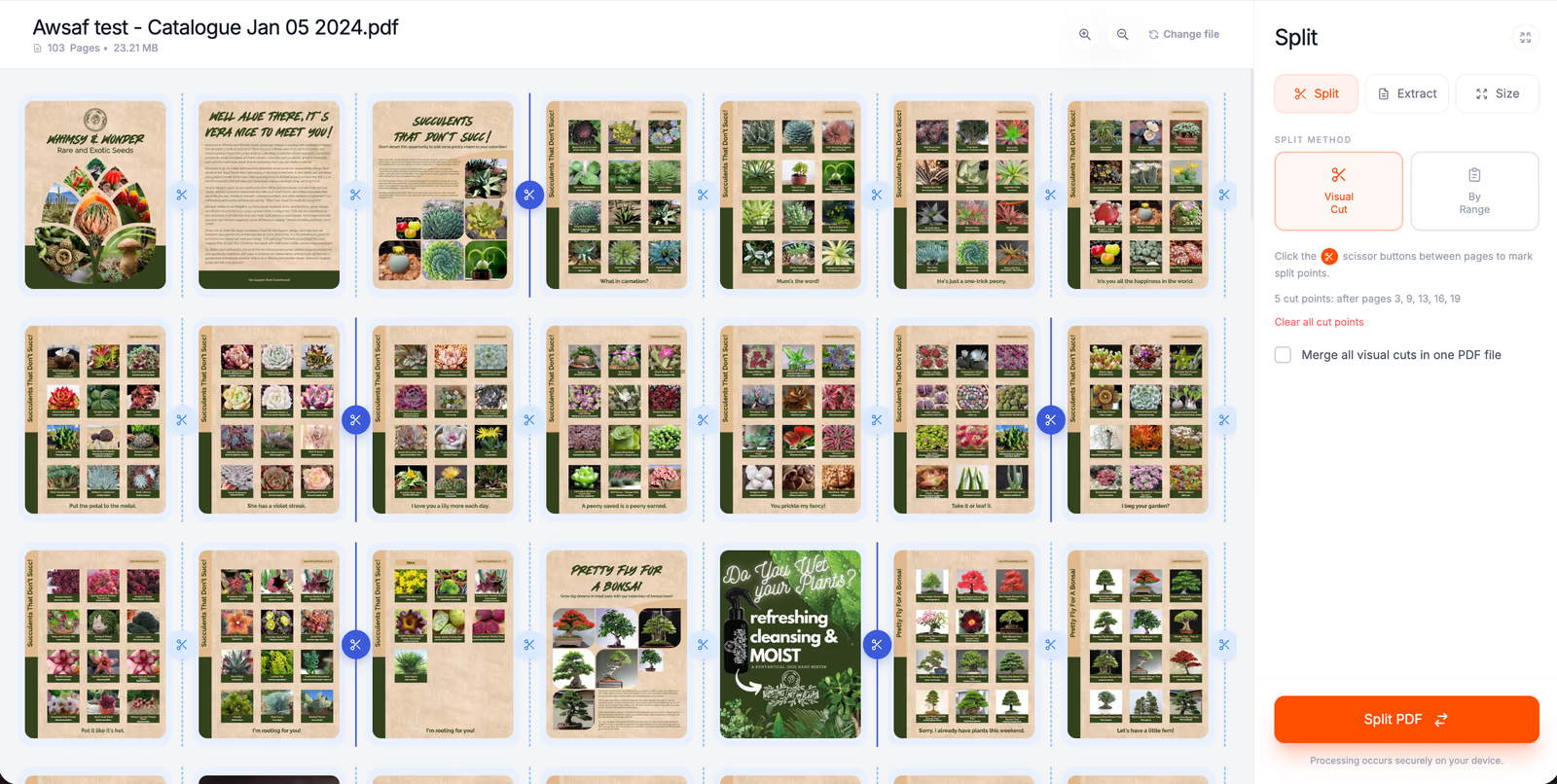
Visual Cut shows every page with a scissors button in the gap after it. Click the scissors between two pages and a cut line appears, while the sidebar keeps a running list of your cut points. In our test on a 103-page plant catalogue, five cuts after pages 3, 9, 13, 16 and 19 split it into six files: pages 1 to 3, 4 to 9, 10 to 13, 14 to 16, 17 to 19, and 20 to the end. "Clear all cut points" starts over.
By Range: custom ranges or every N pages
By Range has two modes. Custom lets you enter page ranges, such as 1 to 10 and 11 to 25, with Add Range creating a card for each file you want. Fixed cuts the document into equal chunks: set "Split every" to 10 and the same 103-page catalogue becomes 11 files of up to 10 pages each, with a preview of every part before you commit. Set it to 1 and every page becomes its own PDF.
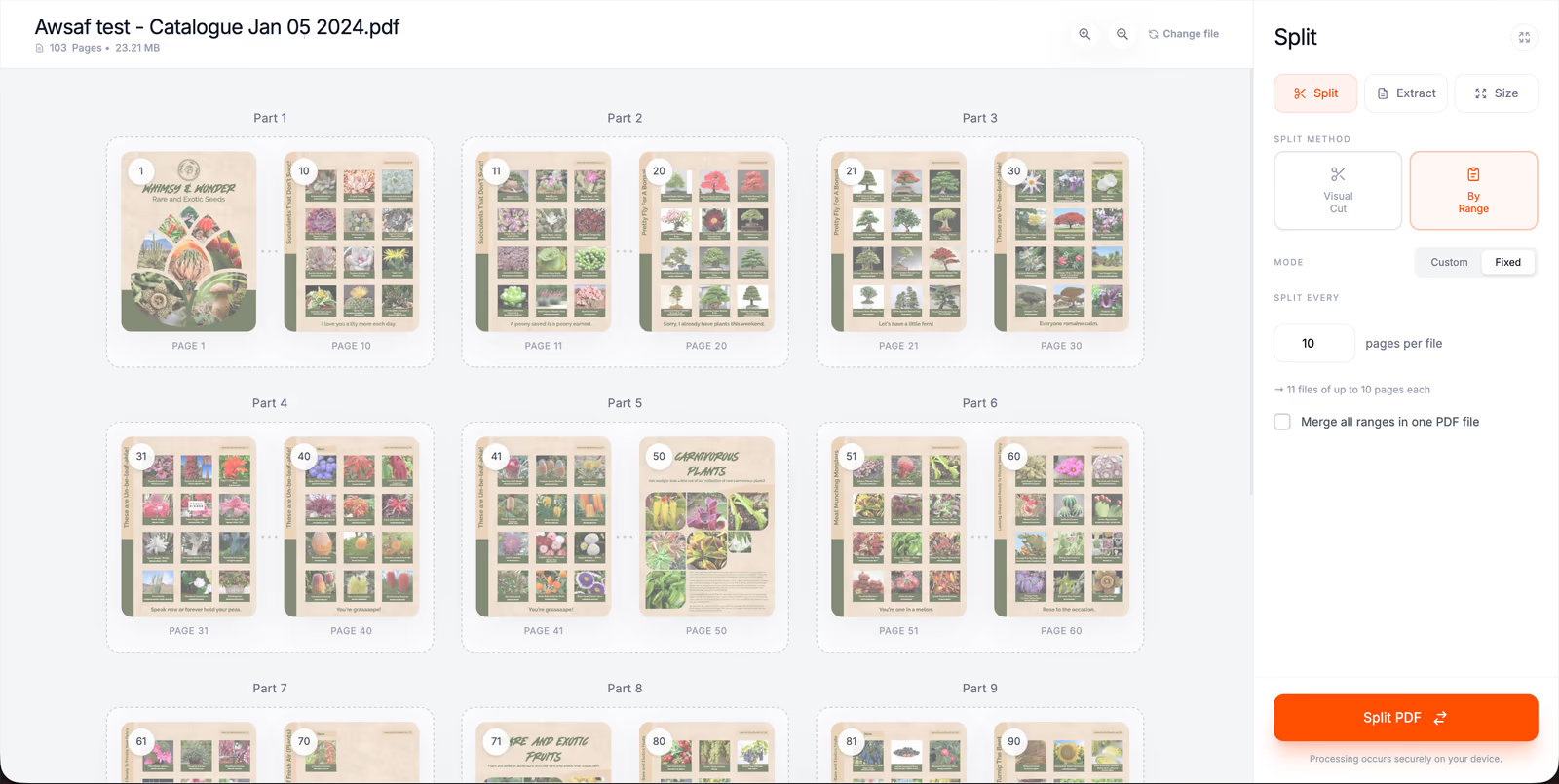
Merge the parts back into one file
Both methods have a checkbox, "Merge all visual cuts in one PDF file" or "Merge all ranges in one PDF file". Tick it and the chosen parts come out as a single PDF instead of several. Combined with Custom ranges it is the quickest way to delete a block of pages: enter ranges that skip the pages you do not want, tick the box, and you get one PDF without them.
Size: keep every part under a set size
The Size tab splits by megabytes instead of pages, which helps when an email service or upload form caps attachment size. Enter a maximum, such as 2 MB per file, and the tool estimates how many parts you will get; for the 23.21 MB catalogue it estimated about 12. Parts are built from whole pages. If a single page is bigger than your limit on its own, that page is saved as a compressed image so it fits, which means its text is no longer selectable. To make a file smaller without splitting it, use the PDF compressor instead.
How to Extract Specific Pages From a PDF
Extracting means picking pages and saving only those, as one new PDF. In Split PDF, switch to the Extract tab and click the thumbnails you want. A tick appears on each, and the sidebar counts them. The pages do not need to be next to each other, and Select all ticks every page when it is easier to untick the few you do not need.
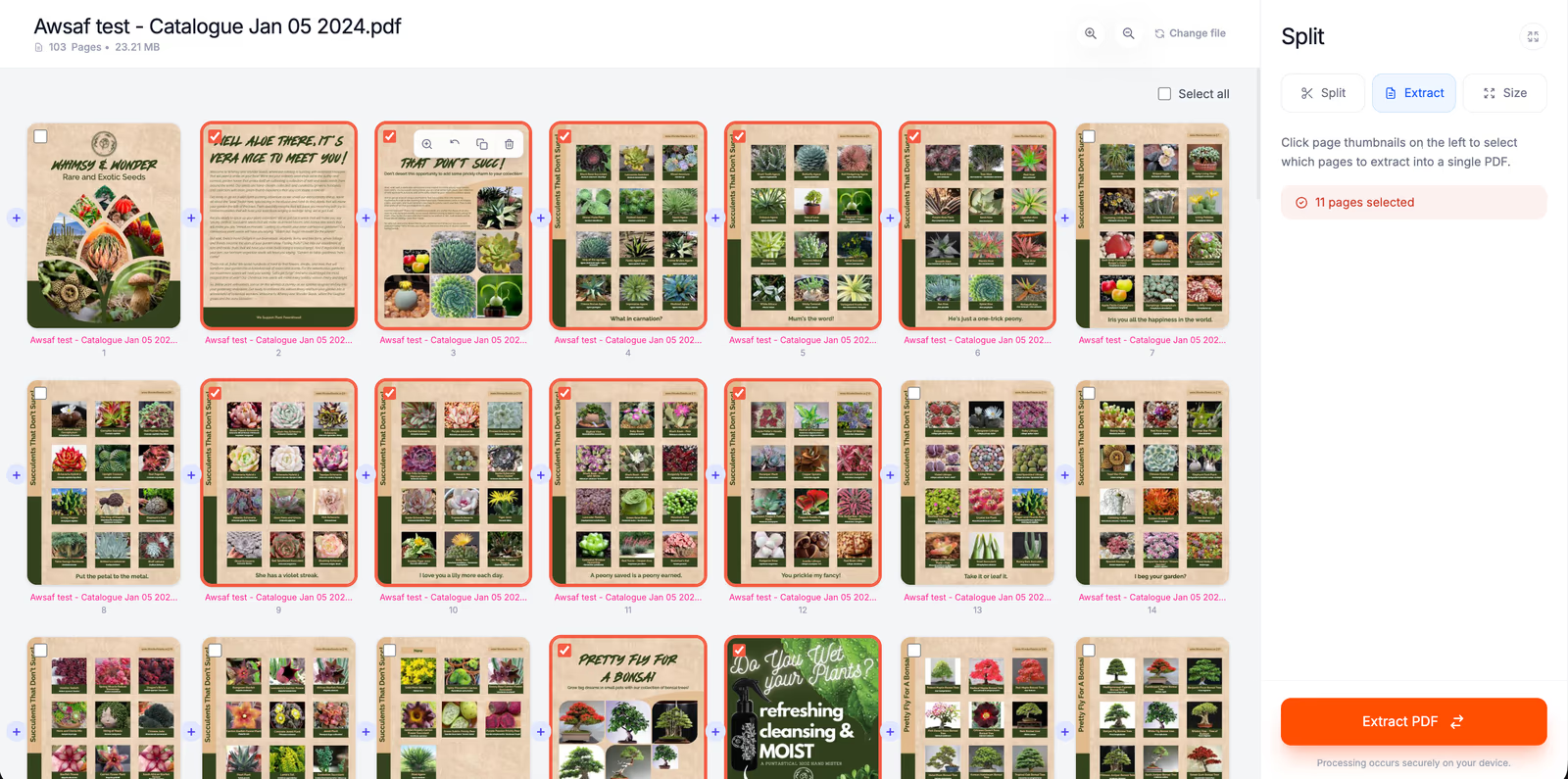
Hover over a page to open its toolbar: zoom in to check the content, rotate the page 90 degrees, duplicate it, or remove it. The plus buttons between pages let you add pages from another PDF or insert a blank A4 page, so Extract doubles as a light page editor.
When the selection looks right, click Extract PDF. You get one file named after the original with "_extracted" added, holding the ticked pages in the order shown, with any rotation applied. Only ticked pages go into the new file, so check that any page you inserted is ticked too.
Merge, Split or Extract: Which One Do You Need?
Pick the row that matches the file you want to end up with. Every option runs in the browser, so the privacy answer is the same for all of them.
| If you want to | Use | You get |
|---|---|---|
| Combine several PDFs or images into one document | Merge PDF, File Mode | One PDF |
| Build one PDF from chosen pages of several files | Merge PDF, Page Mode | One PDF |
| Break a PDF into chapters or sections | Split PDF, Visual Cut or Custom ranges | One PDF per part |
| Turn every page into its own file | Split PDF, By Range, Fixed, every 1 page | One PDF per page |
| Get under an attachment size limit | Split PDF, Size | Parts under your MB limit |
| Keep only a few pages, in any order | Split PDF, Extract | One PDF |
| Delete a block of pages | Split PDF, Custom ranges with "Merge all ranges" ticked | One PDF without those pages |
Offline Alternatives on Mac and Windows
If you would rather not use a website at all, your computer may already have part of what you need.
Mac: Preview
Apple's Preview app can combine PDFs. Open both files, show the thumbnails, and "drag the thumbnails you want to add from the sidebar of one PDF to the sidebar of the other PDF" (Apple Support). Dragging thumbnails to the desktop creates a new PDF from just those pages, which is Preview's version of extracting, and selecting pages and pressing Delete removes them (Apple Support). One warning from Apple's own guide: Preview saves changes automatically, so choose File > Duplicate first if you want to keep the original untouched.
Windows: Microsoft Print to PDF
Windows has no built-in PDF merger. To pull a page range out of a PDF, a common workaround is to open it in Microsoft Edge, choose Print, enter the pages you want, and pick Microsoft Print to PDF as the printer. Microsoft describes that option as one that "lets you create a PDF file from other file formats by using a printer" (Microsoft Support). A printed copy is a new document, so links and form fields may not survive. For anything beyond a single page range, a browser tool or PDF24 Creator does more.
iPhone and Android
The same browser tools work in Safari and Chrome on a phone, with nothing to install. Pick files from the Files app or your downloads. Long PDFs take longer to preview on a phone, because your own device renders every thumbnail.
Fixes for Common Problems
The usual causes are these six.
- The file will not open. Password-protected PDFs cannot be read by the merger or the splitter. Open the file in the app you normally use, save or print an unlocked copy, and add that copy instead.
- An image was rejected. Merge PDF accepts JPG and PNG. Convert HEIC photos from an iPhone, or WebP images saved from the web, to JPG first.
- The file is too big. Guests can add files of up to 50 MB each, and paid plans raise that to 500 MB. Splitting by size first is another way through.
- It is slow on a phone. Rendering thumbnails for a long PDF is real work for a phone's processor. Use a laptop for files with hundreds of pages.
- Bookmarks disappeared. Merging does not carry bookmarks over. Add them again in a PDF editor if your readers need them.
- A page came out as an image. That only happens in Size mode, when one page on its own is bigger than your limit. Raise the MB limit and split again.
After You Merge: Listen to the Finished PDF
A merged course pack or a set of extracted chapters is often something you still have to read. If so, open the finished file in ReadLoudly's PDF reader and have it read aloud with natural voices while you commute or rest your eyes. Unlike the merge and split tools, the reader does upload the document, because turning it into audio happens on ReadLoudly's servers. Our guide to listening to PDFs online covers that workflow, and what a PDF reader does explains the rest.
For everything before that step, the rule is simple: if a document is private, do not send it anywhere it does not need to go. Merging, splitting and extracting pages are jobs your own browser can do, and the whole set of free PDF tools is built on that idea.
Try it on the PDF you were about to upload
Merge PDF and Split PDF run in your browser, need no account, and never send your document to a server.